
The best WordPress SEO services Toronto businesses can hire solve three problems together, not one: slow sites, security holes, and missing rankings. Last quarter, one Toronto retailer had all three at once. Their WordPress site had been hacked twice in eight weeks, their Largest Contentful Paint score sat at 6.8 seconds, and they had dropped from position 4 to position 23 for their main keyword. Three months later, all three problems were fixed. Site speed under 1.5 seconds, locked down against attacks, and back to position 6 with steady upward movement.
That’s the standard for WordPress SEO in Toronto. It’s not one thing, it’s three problems solved together: speed, security, and rankings. Most WordPress sites fail because their owners treat these as separate issues handled by separate people. This guide shows you how to fix all three, what to do yourself, and when hiring a Toronto WordPress SEO service makes sense.
Key Takeaways
- WordPress SEO covers three things at once: site speed, security, and search rankings. Fixing one without the others wastes time.
- Speed and SEO are tied together. Sites with Largest Contentful Paint above 2.5 seconds lose about 30% of mobile traffic before they even rank.
- WordPress powers 43% of all websites, making it the #1 target for hackers. Security hardening is non-negotiable for Toronto business sites.
- The right plugin stack matters more than the number of plugins. Rank Math or Yoast plus a caching plugin plus security plugin is the core setup.
- Local SEO for Toronto WordPress sites runs on Google Business Profile optimization, LocalBusiness schema, and consistent NAP citations.
- DIY WordPress SEO works for small sites with simple needs. Sites earning revenue or competing for high-intent keywords usually need professional help.
- Most Toronto WordPress SEO services cost between $800 and $3,500 per month depending on scope and competition.
What WordPress SEO Actually Means
WordPress SEO is the practice of optimizing a WordPress website to rank higher in search results, load faster for users, and stay secure against attacks. It combines three areas most agencies treat separately: technical performance, security hardening, and traditional SEO.
WordPress is the world’s most popular content management system, powering more than 43% of all websites. That popularity is a double-edged sword. The platform comes with strong SEO foundations like clean URL structures, fast theme options, and a massive plugin ecosystem. It also comes with weaknesses: bloated themes, plugin conflicts, and constant security threats.
Effective WordPress SEO addresses the platform’s strengths and weaknesses together. You can’t rank if your site loads in 8 seconds. You can’t rank if you’ve been hacked and Google has flagged you. You can’t rank if your title tags and structured data are missing or wrong. WordPress SEO services in Toronto fix all three at once.
Pro Tip: If your WordPress site loads in over 3 seconds on mobile, you’re losing rankings regardless of how good your content is. Google’s Core Web Vitals are now a confirmed ranking factor and slow WordPress sites get penalized aggressively.
Curious which problems show up most often on Toronto WordPress sites? That’s next.
Why WordPress Sites Need Specialized SEO
WordPress SEO is different from generic SEO because the platform introduces unique problems that other websites don’t have.
The plugin problem
A typical Toronto WordPress site we audit has 28 active plugins. About 10 are essential. The other 18 are slowing the site down, conflicting with each other, or creating security holes the owner doesn’t know exist. Every plugin you install adds CSS, JavaScript, and database queries that affect page speed and crawlability.
The theme problem
Premium WordPress themes from marketplaces like ThemeForest often look beautiful and load like a freight train. They include features 95% of sites never use, but every page still loads all that code. A site running Avada or Divi will typically take three times longer to load than the same site running Astra or Kadence.
The update problem
WordPress core, plugins, and themes need updates every week or two. Skip these and your site becomes a target for hackers. Run them carelessly without staging and you risk breaking your site, your SEO, or both.
Pro Tip: Always test plugin and theme updates on a staging site before pushing to production. WP Engine, Kinsta, and Cloudways all include one-click staging in their hosting plans. If your host doesn’t support staging, change hosts.
These three problems compound. A bloated theme plus 20 unnecessary plugins plus skipped updates equals slow, vulnerable, hard-to-rank sites. Toronto WordPress SEO services fix all three structurally, not with band-aids.
Time to look at the specific problems we see most often.
The 7 WordPress SEO Problems Killing Toronto Business Sites
After auditing hundreds of WordPress sites for businesses across Toronto, the same seven problems appear in roughly 85% of accounts.
Problem 1: Slow Core Web Vitals
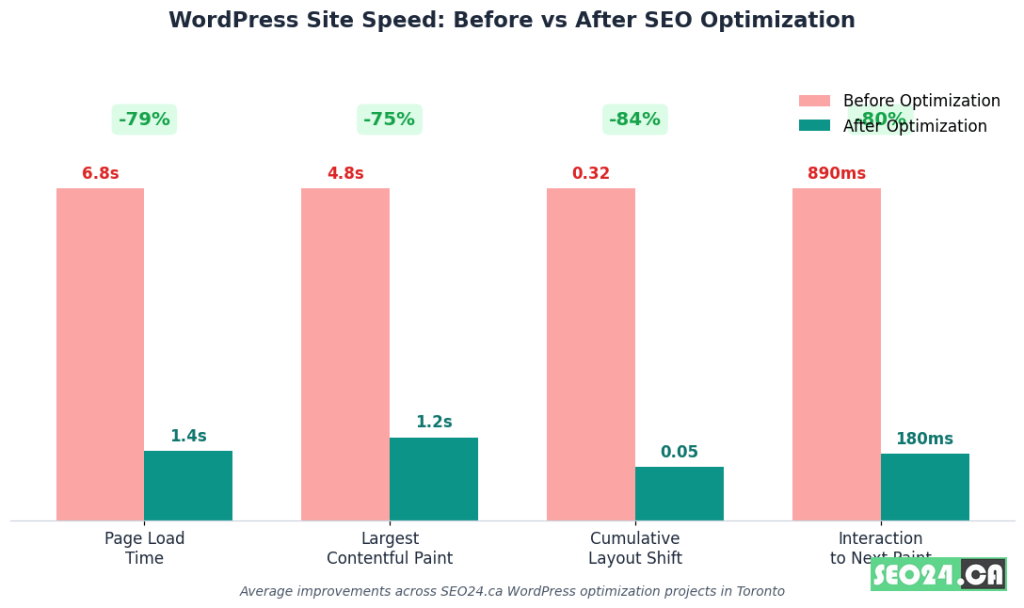
Largest Contentful Paint above 2.5 seconds. Cumulative Layout Shift above 0.1. Interaction to Next Paint above 200 milliseconds. These three metrics now affect both rankings and conversions.
Problem 2: Bloated themes and plugins
Themes loading 800KB of unused CSS. Plugins that add their own jQuery library on top of WordPress core. 12 different fonts loaded across the site. Every kilobyte costs you load time and rankings.
Problem 3: Missing or incorrect schema markup
LocalBusiness schema missing or filled out wrong. Article schema not implemented. FAQ schema added but not validated. Without proper structured data, Google can’t showcase your content in rich results.
Problem 4: Poor internal linking
New posts published with zero internal links. Old posts never updated to link to new content. Cornerstone pages buried with no linking strategy. WordPress makes internal linking easy and most sites still ignore it.
Problem 5: Security holes
Default admin usernames. No two-factor authentication. Outdated plugins with known vulnerabilities. No firewall. No backups. WordPress sites get attacked thousands of times per day. Most owners don’t even know.
Problem 6: Wrong robots.txt and sitemap configuration
Important pages blocked from crawling. Junk URLs included in sitemaps. Pagination causing duplicate content. These technical issues quietly destroy ranking potential.
Problem 7: Image SEO ignored
3MB hero images on the homepage. Alt text missing or set to filename. No WebP versions. No lazy loading. Images are usually the heaviest part of a WordPress page and the easiest SEO win when fixed.
Pro Tip: Run your site through Google PageSpeed Insights and look at the “Diagnostics” section, not just the score. That’s where the specific fixes are listed. Most Toronto WordPress sites have 10 to 15 specific items they could fix this afternoon.
Each of these problems has a fix. The speed ones first, since they’re the most common.
How to Fix WordPress Site Speed and Core Web Vitals
Site speed is the single biggest leverage point in WordPress SEO. Fix this and rankings, conversion rates, and user satisfaction all move together. Here’s the order to do it in.
Step 1: Upgrade to managed WordPress hosting
Shared hosting on Bluehost or HostGator is the #1 reason Toronto WordPress sites are slow. Managed WordPress hosts like WP Engine, Kinsta, Cloudways, or Pressable typically cost $20 to $50 per month and make sites 3 to 5 times faster instantly. This is the biggest single change you can make.
Step 2: Switch to a lightweight theme
If you’re on Avada, Divi, Bridge, or another marketplace theme, you’re carrying 2MB of code most pages don’t need. Switch to Astra, GeneratePress, Kadence, or Blocksy. These themes load in under 100KB and have full design flexibility.
Step 3: Install a caching plugin
WP Rocket is the gold standard at $59 per year. LiteSpeed Cache is free and excellent if you’re on LiteSpeed hosting. WP Fastest Cache is a free middle option. Whichever you choose, configure page caching, browser caching, GZIP compression, and lazy loading.
Step 4: Optimize images
Install ShortPixel or Smush to compress existing images. Enable WebP delivery. Use lazy loading for below-fold images. Resize images before upload so you’re not serving 4000px images that display at 800px.
Step 5: Eliminate render-blocking resources
Defer non-critical JavaScript. Inline critical CSS. Remove unused CSS with tools built into WP Rocket or Perfmatters. This is where most sites unlock the biggest LCP improvements.
Step 6: Use a CDN
Cloudflare’s free tier handles 99% of small business needs. For higher-traffic sites, BunnyCDN offers excellent performance for $1 per month. CDNs reduce latency for visitors outside Toronto and protect against DDoS attacks.
Pro Tip: Stop chasing PageSpeed scores. Focus on Core Web Vitals from real user data in Google Search Console (Page Experience report). A site with a PageSpeed score of 72 but green Core Web Vitals from real users ranks better than a site with PageSpeed 95 but slow real-world performance.
Real example: A North York e-commerce site we worked with moved from Bluehost shared hosting to Cloudways managed WordPress. Their average page load dropped from 6.8 seconds to 1.4 seconds. Organic traffic grew 67% over the following four months with no other changes.
For a deeper walkthrough of ongoing maintenance that keeps speed gains, see our WordPress Maintenance Toronto service.
Speed solved. Security next, since slow sites that get hacked don’t rank at all.
WordPress Security: Protect Your Site from Hackers
WordPress security and SEO are connected directly. When your site gets hacked, Google flags it as “Dangerous” in search results, your traffic drops to zero, and recovering rankings takes months. Toronto business sites need security from day one, not after the first attack.
The most common WordPress attack vectors
- Brute-force login attempts against the wp-admin URL
- Outdated plugins with known vulnerabilities being exploited
- Cross-site scripting through poorly coded contact forms
- SQL injection on unfiltered search and comment forms
- Weak admin passwords cracked through dictionary attacks
Essential security hardening steps
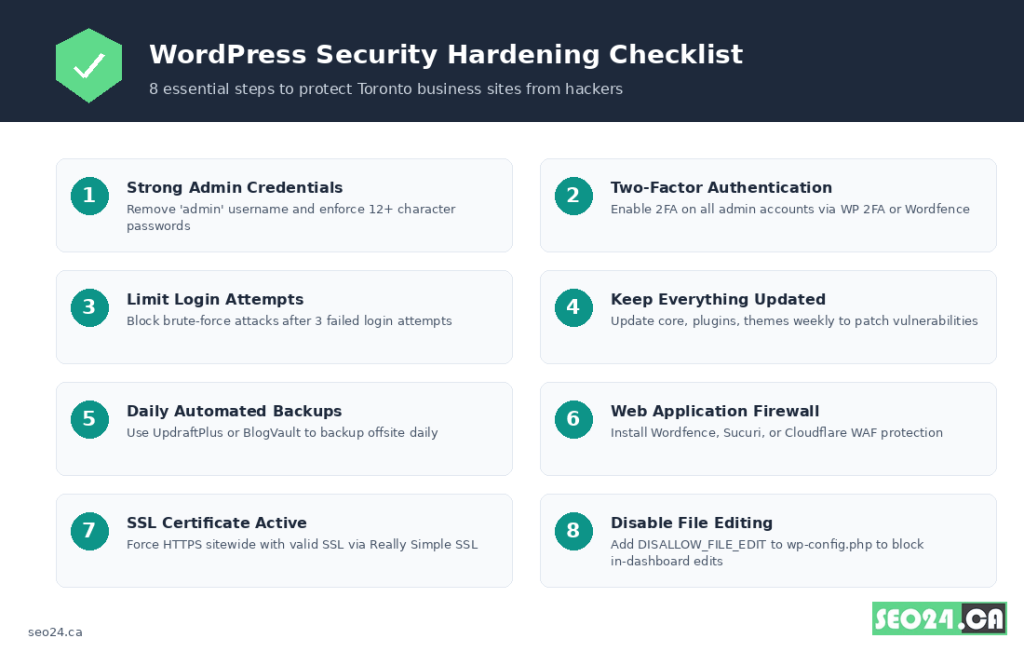
- Remove the default “admin” username. Hackers try it first on every brute-force attempt.
- Enforce 12+ character passwords for every admin account.
- Enable two-factor authentication via WP 2FA or Wordfence Login Security.
- Limit login attempts to 3 per IP using Limit Login Attempts Reloaded.
- Install a security plugin: Wordfence, Sucuri, or iThemes Security.
- Set up automatic daily backups with UpdraftPlus or BlogVault, stored offsite.
- Force HTTPS sitewide. Install Really Simple SSL if your host doesn’t handle it.
- Disable file editing through wp-config.php by adding DISALLOW_FILE_EDIT.
- Keep WordPress core, plugins, and themes updated weekly.
- Remove unused plugins and themes completely. Deactivated isn’t enough.
Pro Tip: Even with all security measures in place, attacks succeed sometimes. Backups are your insurance policy. Test that your backup actually restores correctly at least once every 90 days. A backup you can’t restore is no backup at all.
“A Toronto law firm we helped had ignored WordPress updates for 18 months because they were worried about breaking the site. A vulnerable plugin got exploited, attackers redirected 60% of their traffic to a scam site, and they were de-indexed by Google for three weeks. Recovery cost was over $14,000. Update costs would have been zero.“
Security handled. Now the checklist that tells you whether your WordPress SEO is actually working.
The Complete WordPress SEO Checklist
Use this checklist to audit your current WordPress site or set up a new one properly. Each item is a real ranking factor. Skip them and your competitors with proper setups will outrank you no matter how good your content is.
Technical foundation
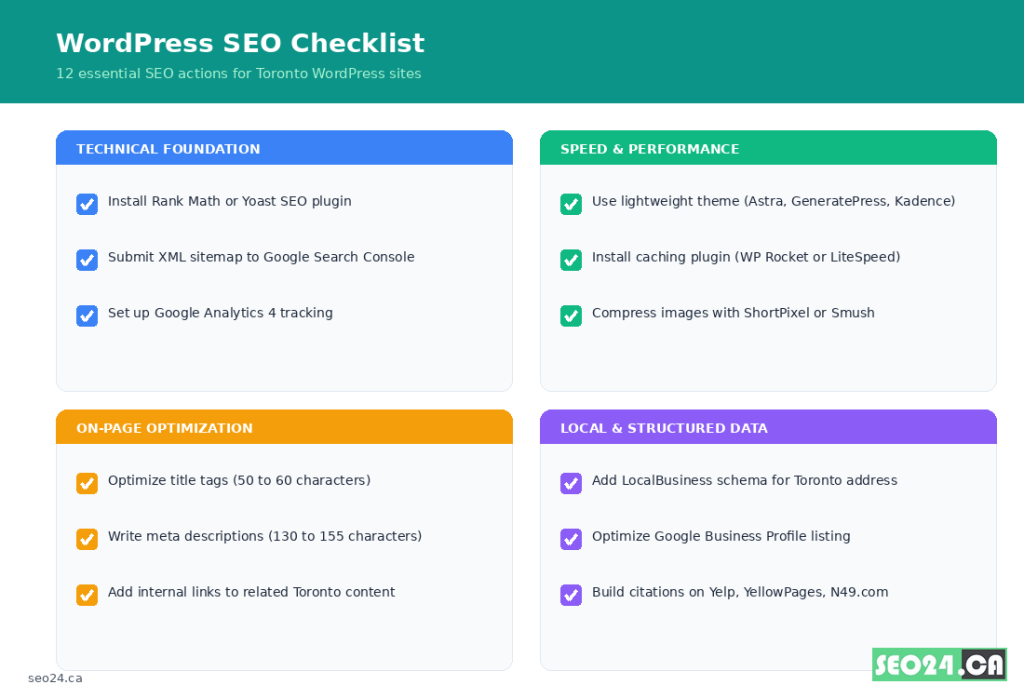
- Install Rank Math or Yoast SEO plugin and run the setup wizard.
- Submit XML sitemap to Google Search Console and Bing Webmaster Tools.
- Set up Google Analytics 4 with conversion tracking.
- Configure robots.txt to allow crawling but block admin and feed URLs.
- Set canonical URLs to prevent duplicate content issues.
- Configure permalinks to /%postname%/ structure.
Speed and performance
- Use a lightweight theme (Astra, GeneratePress, Kadence, or Blocksy).
- Install a caching plugin (WP Rocket or LiteSpeed Cache).
- Compress and lazy-load all images.
- Enable WebP image format delivery.
- Use a CDN (Cloudflare or BunnyCDN minimum).
- Achieve green Core Web Vitals in Google Search Console.
On-page optimization
- Write unique title tags (50 to 60 characters) for every page.
- Write compelling meta descriptions (130 to 155 characters).
- Use one H1 per page that matches search intent.
- Add internal links to related Toronto content.
- Include focus keyword in the first 100 words naturally.
- Add descriptive alt text to every image.
Local and structured data
- Add LocalBusiness schema with your Toronto address.
- Create and optimize Google Business Profile listing.
- Build citations on Yelp, YellowPages.ca, N49.com, 411.ca, and Profile Canada.
- Add FAQ schema to pages that include FAQ sections.
- Implement breadcrumb schema for category and product pages.
- Verify all schema with Google’s Rich Results Test.
Pro Tip: Don’t use multiple SEO plugins at once. Running both Yoast and Rank Math will cause schema conflicts, duplicate meta tags, and ranking issues. Pick one, deactivate the other, and migrate your settings properly.
If your site is missing more than 5 of these items, our SEO Service Toronto (seo24.ca/seo/) team can audit and implement them properly.
Best WordPress SEO Plugins (And Ones to Skip)
Plugin choice affects rankings, speed, and security at the same time. A wrong stack hurts all three. Here’s what we recommend based on hundreds of Toronto WordPress installs.
| Category | Best Choice | Alternative | Skip |
| SEO | Rank Math (free + paid) | Yoast SEO Premium | All-in-One SEO (outdated) |
| Caching | WP Rocket ($59/yr) | LiteSpeed Cache (free) | W3 Total Cache (complex) |
| Image Optimization | ShortPixel | Smush | EWWW (heavier) |
| Security | Wordfence Premium | Sucuri | iThemes Security Pro |
| Backups | BlogVault | UpdraftPlus Premium | Free local backups only |
| Forms | Gravity Forms | WPForms | Contact Form 7 (security risks) |
| Page Builder | Native Block Editor | GenerateBlocks | Elementor (heavy) |
The big controversy in WordPress SEO is page builders. Elementor and Divi are the most popular, but they’re also the heaviest. Native block editor with GenerateBlocks gives you 90% of the design flexibility at 10% of the page weight. We migrate clients off Elementor to native blocks regularly and watch their Core Web Vitals improve overnight.
Pro Tip: Audit your plugin list quarterly. Deactivate plugins you haven’t used in 3 months and delete them completely. Every plugin is a security risk and a performance cost, even when inactive.
Plugin stack sorted. Now the on-page work that turns technical SEO into actual rankings.
On-Page WordPress SEO Best Practices
On-page SEO is everything inside the post or page itself. Title tags, headings, content structure, internal links. For Toronto WordPress sites, here’s what moves the needle.
Title tags and meta descriptions
Use Rank Math or Yoast to write custom title tags for every page. Include your focus keyword near the start. Add a brand or location modifier at the end. Example: “WordPress SEO Services Toronto | SEO24.ca”
Meta descriptions should be 130 to 155 characters, include the focus keyword once naturally, and promise a specific benefit that makes people click.
Content structure
Use one H1 per page (your post title). Use H2s for major sections. Use H3s for subsections. Keep paragraphs to 2 to 4 sentences. WordPress block editor makes this easy to format consistently.
Internal linking
Link new posts to 3 to 5 older relevant posts. Update older posts to link to new content when it’s topically related. Use descriptive anchor text, not “click here.” WordPress plugins like Link Whisper automate suggestions for this.
Image optimization
Every image needs descriptive alt text that describes the image and includes keywords naturally. Filenames should describe content (use “wordpress-seo-checklist-toronto.png” not “IMG_4521.png”). Always specify image dimensions in HTML to prevent layout shift.
Pro Tip: WordPress users underutilize the “Focus Keyword” field in Rank Math and Yoast. Use it. It pulls every on-page check into one score so you can see exactly what’s missing before publishing.
On-page sorted. For Toronto businesses, local SEO is where the biggest wins come from.
Local SEO for Toronto WordPress Sites
If your business serves customers in Toronto, North York, Scarborough, Etobicoke, or anywhere in the GTA, local SEO is where most of your traffic and leads come from. WordPress handles local SEO well when configured properly.
Google Business Profile optimization
Claim and verify your Google Business Profile. Add complete business hours, services, photos, and a long description with Toronto-relevant keywords. Post weekly updates. Respond to every review within 24 hours. This is the #1 local SEO action.
Local schema markup
Add LocalBusiness schema with your exact name, address, phone number, business hours, and service areas. Rank Math and Yoast both let you configure this without coding. Validate it with Google’s Rich Results Test.
Location pages
If you serve multiple neighborhoods, create individual location pages: /seo-services-north-york/, /seo-services-scarborough/, /seo-services-etobicoke/. Each page needs unique content explaining your services in that area, not duplicated text with the city name swapped.
Citations and directories
Build citations on Canadian directories: YellowPages.ca, N49.com, 411.ca, Profile Canada, Cylex, and your industry’s specific directories. Use identical Name, Address, and Phone information across every site. Even small variations hurt local rankings.
Local content strategy
Write content that specifically targets your service areas. “WordPress SEO for North York businesses,” “How Toronto dentists rank on Google,” “Local SEO services in Scarborough.” Each piece earns long-tail rankings that competitors won’t bother chasing.
Our SEO Agency Toronto covers all of this end-to-end if you’d rather hand it off.
Now the question every business owner asks eventually: do this yourself or hire someone?
DIY vs Toronto WordPress SEO Service: Which Path Makes Sense
Not every WordPress site needs professional SEO services. Some absolutely do. Here’s how to tell which side you’re on.
DIY makes sense when…
- You’re a solo founder with under 20 hours per week to spend on marketing.
- Your competition is low and your industry isn’t saturated.
- You enjoy technical work and learning new tools.
- Your site generates under $5,000 per month and isn’t critical to your business.
- You have time to learn through trial and error.
Hiring a Toronto WordPress SEO service makes sense when…
- Your time is worth more than $75 per hour on actual work that grows the business.
- You’re in a competitive Toronto market (legal, real estate, dental, home services).
- Your site generates revenue and downtime or ranking drops hurt the business.
- You’ve tried DIY and it’s not working after 6 months of consistent effort.
- You need someone to handle technical, content, and local SEO together.
Cost expectations
| Service Level | Monthly Investment | Best For |
| Basic WordPress SEO maintenance | $300 to $800 | Small sites needing technical upkeep |
| Standard WordPress SEO services | $800 to $1,800 | Local Toronto businesses competing in moderate niches |
| Advanced WordPress SEO + content | $1,800 to $3,500 | Growing businesses in competitive markets |
| Enterprise WordPress SEO | $3,500+ | E-commerce, multi-location, or competitive verticals |
Pro Tip: Be skeptical of any Toronto WordPress SEO agency charging under $500 per month. The work involved (audits, technical fixes, content, link building, reporting) takes more time than that price covers. You’re either getting templated work or paying for nothing.
The honest version: most small businesses get to a certain plateau with DIY WordPress SEO, then stall. Getting past the plateau usually requires either dedicated time investment or professional help.
That brings us to the bigger picture.
Final Thought
WordPress SEO in Toronto isn’t complicated, it’s just three problems most people try to solve separately. Speed, security, and search rankings work together. Fix one in isolation and the gains evaporate. Fix all three and rankings, traffic, and revenue all move in the same direction.
The checklists, plugin recommendations, and security steps in this guide are everything you need to start. The question is whether you have the time and inclination to execute them yourself, or whether bringing in a Toronto WordPress SEO service is the better use of your time.
Either path works. Doing nothing doesn’t.
Frequently Asked Questions
How much do WordPress SEO services in Toronto cost?
Most Toronto WordPress SEO services cost between $800 and $3,500 per month depending on scope. Basic maintenance and technical SEO sits around $300 to $800. Standard service for local businesses runs $800 to $1,800. Advanced packages with content, link building, and active campaign management cost $1,800 to $3,500. Anything under $500 per month is usually templated work with limited results.
How long does WordPress SEO take to show results?
Technical SEO improvements (site speed, security, on-page fixes) show measurable gains in Google Search Console within 4 to 8 weeks. Content-driven ranking improvements typically take 4 to 6 months to mature. Local SEO results from Google Business Profile optimization can show within 2 to 4 weeks. Highly competitive Toronto markets often require 12 months of consistent work.
What’s the best SEO plugin for WordPress in 2026?
Rank Math is our top recommendation for most Toronto WordPress sites. It’s lighter than Yoast, includes more features in the free version, and handles schema markup more thoroughly. Yoast SEO Premium is still excellent if you’re already using it. Avoid running multiple SEO plugins at once. Pick one and configure it properly.
Is WordPress good for SEO compared to other platforms?
Yes, WordPress is one of the strongest platforms for SEO when configured properly. It offers full control over URLs, meta tags, schema markup, internal linking, and technical optimization. The downside is that WordPress requires more technical management than Shopify or Squarespace. Done right, WordPress consistently outperforms hosted platforms for SEO.
How often should I update my WordPress site?
Check for updates weekly and apply them within 7 days of release. WordPress core, plugins, and themes all release updates that include security patches. Sites that skip updates for more than 30 days become security targets. Test updates on a staging site first whenever possible to catch any compatibility issues.
Can WordPress SEO work for North York and Scarborough businesses too?
Yes, WordPress SEO works for any Toronto-area business. Local SEO strategies for North York, Scarborough, Etobicoke, and the broader GTA follow the same principles: optimized Google Business Profile, LocalBusiness schema, location-specific content, and consistent citations across Canadian directories. The neighborhood-specific keywords often have lower competition than “Toronto” alone.
Ready to Fix Your WordPress SEO?
If your Toronto WordPress site is slow, insecure, or stuck on page 3, book a free WordPress SEO audit with our team. We’ll review your Core Web Vitals, security posture, on-page setup, and competitive positioning, then send you a prioritized list of fixes. Book your free audit .