
WordPress comment spam is almost always automated, and automated spam is very stoppable. Bots crawl the web nonstop looking for open comment forms where they can drop links, fake praise, and promotional junk. The fix is layered: tighten a handful of built-in Discussion settings, switch on Akismet, add a honeypot, and block bad traffic at the firewall. Do that and you cut spam by 90% or more without adding any friction for real readers. This guide walks through every method that actually works, from the fastest free wins to advanced blocking, in the order I would set them up on a live site.
Key Takeaways
- Most WordPress comment spam is bot-generated, so the right automated defenses remove the bulk of it.
- Start free. The controls in Settings > Discussion (manual approval, required name and email, link limits, disabled trackbacks) stop a large share of spam before any plugin.
- Akismet is the strongest single tool for most sites. It is free for personal blogs and starts at $9.95 per month for commercial ones.
- Honeypots block bots with zero friction for humans. CAPTCHA adds a visible barrier and should be used with more care.
- The old Comment Blacklist is now called Disallowed Comment Keys (renamed in WordPress 5.5) and sends matching comments straight to spam.
- A firewall such as Cloudflare stops spam bots before they reach WordPress, cutting both spam and server load.
- Spam only damages SEO once it is published to your live site, so keeping everything in moderation is the real safeguard.
What Is WordPress Comment Spam?
WordPress comment spam is any unwanted comment, usually posted by a bot, that exists to place links or promotional text on your site instead of joining the conversation. Think fake compliments with a payday-loan link attached, or a wall of casino URLs.
WordPress is the biggest target for a simple reason: it runs a huge share of the web, and its default comment form is identical across millions of sites. The submit endpoint (wp-comments-post.php) sits at the same address everywhere, so a bot that learns to spam one WordPress site can spam them all. That predictability is exactly what scripts are built to exploit.
The scale surprises people. On busy sites, Akismet reports that up to 85% of submitted comments are spam. Out of every 100 submissions, only about 15 are real. Akismet alone has now blocked more than 500 billion spam comments across 100 million-plus sites, which tells you how industrial this problem is.
| What most people miss Most site owners picture a human typing junk. The reality is that the overwhelming majority of WordPress comment spam is scripted. A bot parses your form’s raw HTML and fires off thousands of submissions an hour, never once looking at your page the way a person would. That single fact is what makes spam so beatable: you are mostly fighting software, and software follows predictable patterns you can filter. |
Once you see spam as a software problem rather than a people problem, the defenses below start to make a lot more sense.
Why WordPress Spam Comments Cost You More Than Time
Left unchecked, spam comments do real damage across four areas: your SEO, your server, your reputation, and your security. None of these are hypothetical.
- SEO risk. Spam that reaches your live site adds low-quality outbound links to shady domains. Google can read those links as endorsements, which drags down your authority. A severe injection can even trigger a manual action.
- Server load. Bots do not submit one comment and leave. They hammer the same forms over and over. On shared hosting that traffic eats resources and slows your site, which is why solid WordPress speed optimization and spam control tend to go hand in hand.
- Reputation. A comment section full of “Buy Cheap Meds Here” links looks abandoned. First-time visitors judge site quality in seconds, and visible spam signals that nobody is minding the store.
- Security exposure. Some spam bots are quietly probing for weaknesses. Sites with weak comment protection usually have gaps elsewhere too, so tightening comments is part of the wider job of choosing to secure your WordPress site.
One example from our own queue: a Scarborough physiotherapy clinic came to us because their site had slowed to a crawl. Nobody had opened the Comments screen in three years. It held roughly 40,000 spam comments, the wp_comments table had grown past 60 MB, and a dozen approved comments on old blog posts were linking out to essay mills and crypto schemes. The speed problem and the spam problem turned out to be the same problem. Emptying the queue, deleting the live junk, and turning on manual approval took an afternoon, and the database shrank enough that TTFB dropped on its own.
Set the filters up once and this is a fifteen-minute job. Ignore it and it costs you traffic for months. Start with the settings you already own.
Fix Your WordPress Discussion Settings First
Before you install a single plugin, open Settings > Discussion in your WordPress admin. Several built-in controls sit there that most owners never touch, and together they stop a large chunk of spam for free.
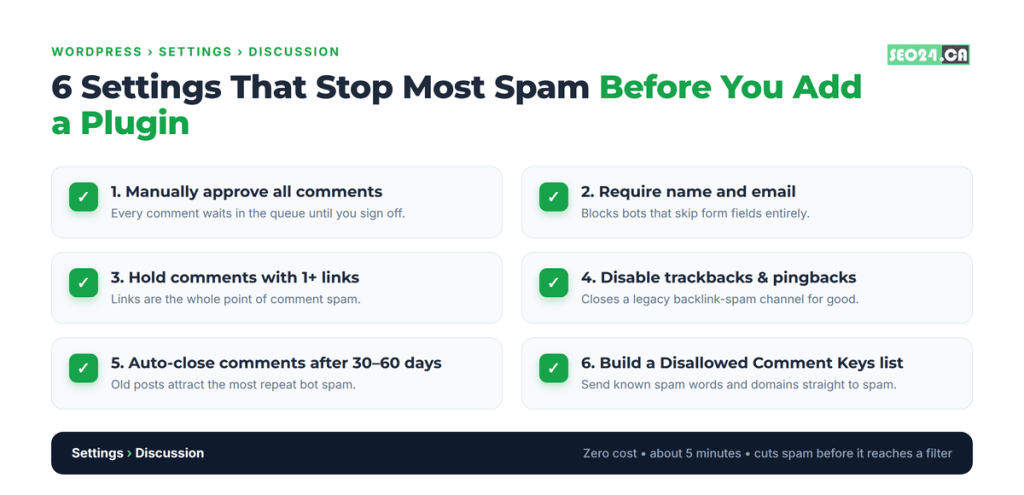
Here is the order I work through them:
- Require manual approval for all comments. Under “Before a comment appears,” check “Comment must be manually approved.” Nothing goes live without your sign-off. It is the simplest filter there is.
- Require name and email. Most bots skip these fields, and the ones that fill them use obvious patterns. Low friction for humans, real friction for scripts.
- Hold comments with links. In Comment Moderation, set the link threshold to 1 or 2. Spam almost always carries links, since that is the whole point of it.
- Turn off trackbacks and pingbacks. Uncheck “Allow link notifications from other blogs.” These legacy features are a favourite backlink-spam channel.
- Auto-close comments on old posts. Set posts older than 30 to 60 days to close automatically. Old content attracts the most repeat bot spam.
- Build a Disallowed Comment Keys list. Add spam words, phrases, URLs, and IPs that should go straight to the spam folder. More on this next, because it deserves its own section.
Pro Tip: Do not disable comments on media attachment pages by accident when tidying up. WordPress creates a separate page for every image you upload, and each one has its own comment form that spammers love. Use a plugin to batch-disable comments on attachment pages rather than turning comments off everywhere, so you keep discussion where it actually matters.
These settings alone clear out a meaningful share of spam. One of them, the disallowed keys list, is powerful enough (and misunderstood enough) to break out on its own.
The WordPress Comment Blacklist, Now Called Disallowed Comment Keys
The feature many people still search for as the “WordPress comment blacklist” was renamed. It is now called Disallowed Comment Keys, and you will find it in Settings > Discussion. Any comment that matches a term on the list gets sent straight to spam without ever hitting your moderation queue.
The naming history trips people up, so here it is plainly. It was the Comment Blacklist in WordPress 5.3 and earlier, became the Comment Blocklist in 5.4, and was renamed Disallowed Comment Keys in WordPress 5.5 (released in 2020). Under the hood the stored option changed from blacklist_keys to disallowed_keys. Same feature, three names.
It checks more than the comment text. WordPress matches your terms against the comment body, the author name, the URL, the email, the IP address, and even the browser user agent. Add a domain you keep seeing in your spam queue, and every future comment carrying it is filtered on sight. Community lists like the widely used splorp blocklist ship with more than 45,000 known spam entries you can paste in as a starting point.
| Yes, but watch the partial matching The catch: Disallowed Comment Keys matches inside words, not just whole words. Add “pasta” and you also block “pastaroni” and anything containing that string. People have accidentally added terms that matched common user-agent strings and flagged nearly every comment as spam, approved regulars included. For any term that could appear in a legitimate comment, use the Comment Moderation box instead, which holds matches for review rather than trashing them. |
Used with a little care, the disallowed keys list is a free, silent filter. Use it recklessly and it will quietly eat real comments. When you want something that reads intent rather than strings, you want Akismet.
Securing the Standard WordPress Comment Form Against Spam
The standard WordPress comment form, the native one that ships with every install, is a spam magnet because its markup and its submit URL are identical everywhere. Bots do not need to study your site. They already know exactly what the default form looks like and where it posts.
That is why anti-spam tools built specifically for native comments matter. Antispam Bee, for example, is designed around the standard WordPress comment form and processes everything locally, so no comment data leaves your server. It pairs a honeypot with configurable rules and handles the default form without you touching a line of code.
Two extra moves harden the native form further:
- Block or throttle direct POSTs to wp-comments-post.php. Real commenters reach that endpoint through your form. Bots often hit it directly. A firewall rule that rate-limits or challenges direct requests to that file cuts a lot of automated submissions.
- Add an invisible check to the form itself. A honeypot field or an invisible reCAPTCHA/Turnstile check on the standard form stops scripted submissions while leaving the experience untouched for humans.
A small business blog we help maintain was getting 300 spam submissions a day through the untouched default form. Antispam Bee plus a Cloudflare rule on wp-comments-post.php took that to a trickle within a day, with no CAPTCHA in sight. The native form is not the weak point people assume once you protect it properly.
Install Akismet to Filter Comment Spam Automatically
Akismet is the most widely used anti-spam solution for WordPress, and the easiest single win on this list. It ships pre-installed with WordPress and comes from Automattic, the company behind WordPress.com.
Every comment gets sent to Akismet’s cloud filter, which compares it against a global database built from millions of sites. It weighs patterns, IP reputation, link destinations, and commenter history to decide what is spam. It catches the sophisticated bots that fill in name and email correctly and dodge obvious keyword triggers, which your manual settings will miss. Automattic claims 99.99% accuracy and says the average user saves around 20 hours of moderation a month.
Setup takes a few minutes:
- Go to Plugins > Installed Plugins and activate Akismet.
- Get an API key at akismet.com. It is pay-what-you-can and free for personal, non-commercial blogs; commercial plans start at $9.95 per month, with a Business tier at $49.95 per month.
- Paste the key into Akismet’s settings, and you are done.
After that it runs in the background. Filtered spam lands in Comments > Spam, where you can occasionally check that no real comment was caught by mistake.
Pro Tip: When Akismet gets a call wrong, tell it. Marking a comment “Not Spam” or “Spam” in your dashboard feeds back into the model and sharpens future filtering for your site. Two minutes of correcting mistakes in the first week noticeably improves accuracy after that.
For most sites Akismet handles the bulk of comment spam on its own. The next layers exist to catch what any single filter leaves behind.
Add a Honeypot Field
A honeypot is an invisible form field hidden from real users with CSS. Humans never see it. Bots do, because they read the raw HTML rather than the rendered page, and they fill in every field they find. Any submission that completes the hidden field is flagged as spam and rejected.
The payoff is the best trade in spam control: zero friction for real users, automatic rejection of most bot submissions. Think of it as leaving a fake door that only burglars can see, then catching everyone who tries the handle.
Two solid plugins add honeypot protection to native comments:
- Antispam Bee is the go-to free option. It runs detection locally with no third-party data transfer, which helps if you have GDPR obligations or privacy-minded readers.
- WP Armour, with over 300,000 active installs, uses a lightweight client-side JavaScript honeypot, relies on no external APIs, and barely touches performance.
Honeypots crush bot spam. They will not stop a human spammer typing by hand, but human spam is rare and gets mopped up by moderation and your keyword list. If you want to raise the bar for the trickier bots, a CAPTCHA is the next lever.
Add CAPTCHA for an Extra Layer
CAPTCHA asks a commenter to prove they are human before the submission goes through. Google’s reCAPTCHA is the most common option and comes in a few flavours.
- reCAPTCHA v2 is the familiar “I’m not a robot” checkbox or image challenge. Visible, and it adds a little friction.
- reCAPTCHA v3 runs invisibly, scoring each interaction in the background and blocking suspicious ones with no challenge shown. Usually the better pick for comment forms.
- Cloudflare Turnstile is a newer, privacy-focused alternative that does not track users the way Google does. Worth a look if your audience cares about that.
For a no-API option, a plugin like Really Simple CAPTCHA adds a lightweight math challenge. Whatever you choose, remember that every visible CAPTCHA costs you some real comments. On sites with an active community, even a small barrier trims legitimate volume, which is why the invisible options (reCAPTCHA v3, Turnstile, honeypots) are generally the smarter default.
Pro Tip: Do not layer a visible CAPTCHA on top of Akismet and a honeypot unless you are still seeing spam get through. Three barriers rarely catch more than two, and each visible one shaves off a few real comments. Add friction only when the data says you need it.
Everything so far filters spam after it reaches WordPress. The heaviest layer works before it ever gets there.
Require Login to Comment (When It Makes Sense)
One of the most effective spam controls is also the most restrictive: make users register and log in before they can comment. Spam bots almost never create accounts, because it is too much effort and exposes them. Turn this on in Settings > Discussion by checking “Users must be registered and logged in to comment.”
It works. Spam drops close to zero. It also cuts real comments, because plenty of genuine readers will not make an account just to leave a quick note. So this is a targeted tool, not a default one.
It fits membership sites, communities, and forums where people already expect to have an account. For a standard blog or business site that wants easy engagement from first-time visitors, it is too much of a wall. Match the choice to how central comments are to your site, and lean on the lighter layers if they matter.
Block Spam at the Firewall Level
Anti-spam plugins deal with spam after it reaches WordPress. A Web Application Firewall (WAF) stops malicious traffic before it ever touches your install. That is a meaningful difference: blocked bots use none of your server resources.
Services like Cloudflare and Sucuri sit in front of your server and inspect incoming requests. Known spam-bot IPs, suspicious patterns, and bot signatures get blocked at the network level. That cuts server load, blunts brute-force attacks, and stops spam sources that plugin-level filtering never sees.
Cloudflare’s free plan already includes basic bot protection and rate limiting, which is enough to make a dent. You can also add firewall rules to throttle comment submissions from a single IP, killing the rapid-fire pattern that automated spam relies on. This overlaps with broader hardening, and our guide on how to secure your WordPress site covers WAF setup as part of a complete approach.
With the firewall in place you have layers at every stage. The question becomes which plugin to run in the middle of them.
The Best WordPress Anti-Spam Plugins Compared
You do not need several anti-spam plugins. Pick one, configure it well, and let your settings and firewall do the rest. Here is how the most reliable options stack up.
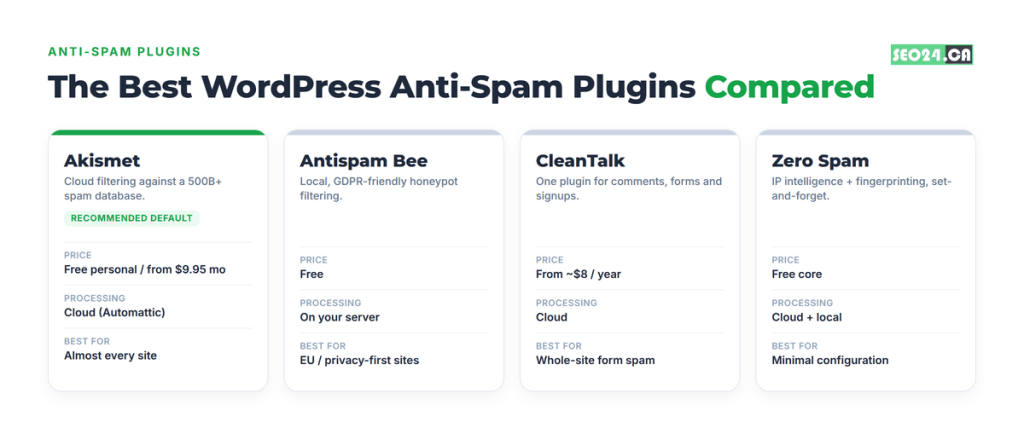
| Plugin | Price | Processing | Best for |
| Akismet | Free personal / from $9.95 mo | Cloud (Automattic) | Almost every site; the recommended default |
| Antispam Bee | Free | Local, on your server | EU and privacy-first sites; native comments |
| CleanTalk | From ~$8 / year | Cloud | Covering comments, forms and signups at once |
| WordPress Zero Spam | Free core | Cloud + local | Set-and-forget blocking with minimal setup |
| Wordfence / Sucuri | Free tier + paid | Firewall + cloud | Sites already running one for security |
Pro Tip: Running two anti-spam plugins at once usually causes more problems than it solves. They fight over the same submissions, double your false positives, and slow the comment flow. One well-configured filter plus your Discussion settings and a firewall beats a pile of overlapping plugins every time.
Picked your filter? Good. Now let’s deal with the backlog that may already be sitting in your dashboard.
How to Remove Existing Spam Comments in WordPress
If your queue already holds thousands of spam comments, you can clear them in a few ways depending on the volume. Deleting old spam also keeps your database lean, since WordPress never cleans it out on its own.
- Bulk delete from the dashboard. Go to Comments > Spam, choose “All” from the top checkbox, then click “Empty Spam” to wipe the folder at once. For very large backlogs, do it in batches.
- Delete via the database if the dashboard times out. When the volume is so high that admin actions stall, open phpMyAdmin and run: DELETE FROM wp_comments WHERE comment_approved = ‘spam’; then OPTIMIZE TABLE wp_comments; to tidy up afterward.
- Turn on Akismet first. Activate it before you start cleaning so new spam stops arriving while you clear the old.
- Check that nothing slipped onto live posts. Filter Comments by “Approved” and scan for anything spammy that got through before you had protection in place. Delete what you find.
Pro Tip: Before running any SQL, take a database backup. The delete query above is safe and standard, but a one-character typo in phpMyAdmin can do real damage, and a five-minute backup is cheap insurance against a very bad afternoon.
With the backlog gone and filters live, there is one bigger question worth asking: do you even need comments at all?
Should You Disable WordPress Comments Entirely?
For some sites, yes. Comments earn their keep on tutorials, news, and discussion posts. On a business site, a service page, or a portfolio, they often add maintenance without adding value, and disabling them is cleaner than policing spam forever.
To switch them off site-wide, go to Settings > Discussion and uncheck “Allow people to submit comments on new posts.” For existing posts, select them all in the Posts editor and use Bulk Actions > Edit to disable comments across the board. The “Disable Comments” plugin by WPDeveloper does the same in one click, including on media pages and custom post types.
If you want to keep comments but stop babysitting them, our WordPress maintenance and support service handles moderation and security monitoring so the queue is never your problem. If you would rather keep them, here is the setup I recommend.
The Recommended WordPress Anti-Spam Setup
For most WordPress sites, this combination gives strong protection without hurting the experience for real commenters. It layers defenses so spam has to beat every stage, which almost nothing does.
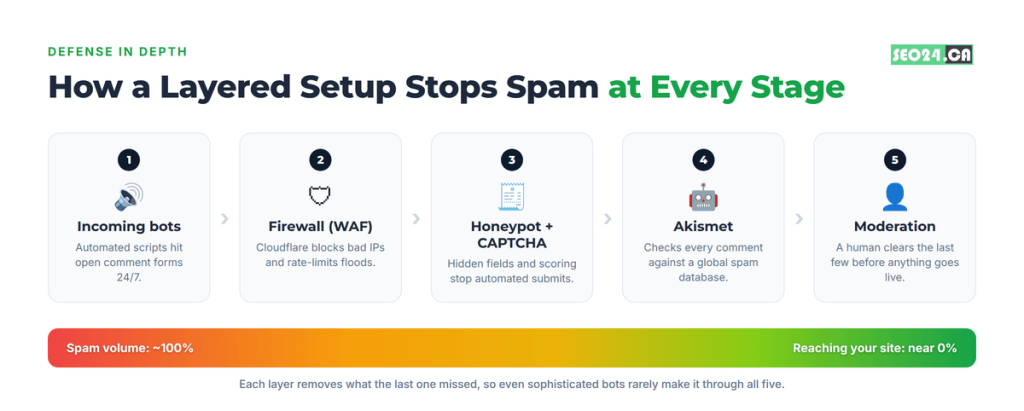
- Set your Discussion settings: manual approval, required name and email, hold comments with 1+ links, disable trackbacks, close comments on old posts.
- Install and activate Akismet with your API key.
- Add Antispam Bee for honeypot protection on the native form.
- Add reCAPTCHA v3 or Cloudflare Turnstile to the comment form.
- Put Cloudflare (free tier) in front of your site for firewall-level bot blocking.
- Build out your Disallowed Comment Keys list with common spam phrases and domains.
This stops automated spam at three points: before it reaches WordPress (firewall), as the form is submitted (honeypot and CAPTCHA), and during processing (Akismet and your settings). Very few bots, even well-built ones, get through all of them at once. The last thing worth understanding is exactly how spam ties back to your rankings.
How WordPress Comment Spam Affects Your SEO
The SEO connection is often misunderstood, so let’s be precise. Spam sitting unpublished in your moderation queue or spam folder does not affect rankings. The risk starts the moment spam gets onto your live site.
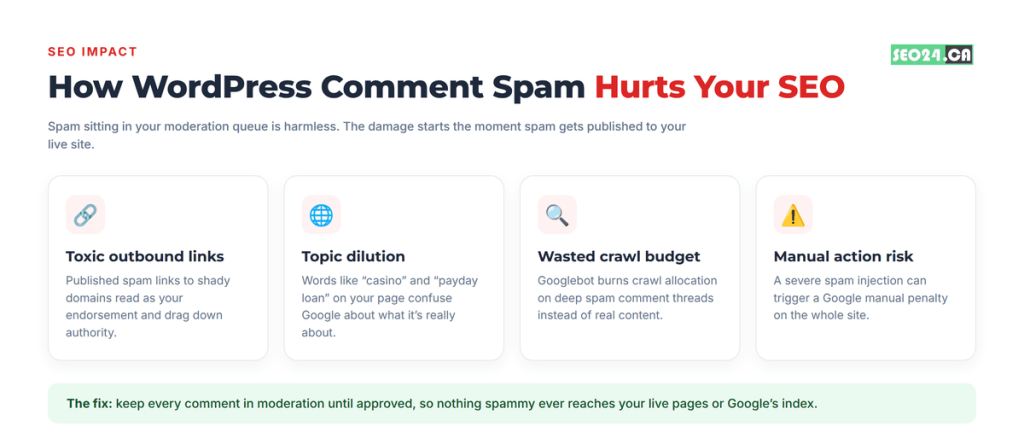
Published spam usually links out to low-quality or harmful sites, and Google can treat those outbound links as endorsements. It is worth checking whether those links are nofollow or dofollow, since even nofollowed spam links clutter your page and signal weak editorial standards. Either way, they are the opposite of the high-quality backlinks you actually want pointing at your site.
There is a relevance cost too. Google reads your comment section as part of the page. If it fills up with “cheap pharmaceuticals” and “online casino,” those words become part of what your page appears to be about, which muddies your ranking for the terms you actually target. Spam bots also burn crawl budget: every deep, spammy comment thread Googlebot crawls is attention pulled away from your real content.
Keeping comments clean protects the quality signals that underpin your technical SEO and site authority. None of that requires anything cleverer than moderation.
Conclusion
Stopping WordPress comment spam is not about finding one magic plugin. It is about stacking a few reliable layers: lock down your Discussion settings, switch on Akismet, add a honeypot, and let a firewall filter the worst traffic before it arrives. That combination removes the overwhelming majority of spam while leaving the door open for the real readers you want to hear from.
Spam only harms your site once it goes live, so the habit that matters most is keeping every comment in moderation until you have approved it. Get that right, keep the filters current, and spam turns into background noise you rarely think about.
Frequently Asked Questions
How do I stop spam comments on WordPress?
Open Settings > Discussion, turn on manual approval, require a name and email, hold anything that contains a link, and switch off trackbacks. Then activate Akismet. That is about 15 minutes of work and it deals with most of the spam on most sites. If junk still gets through, add a honeypot, then a firewall rule. Only reach for a visible CAPTCHA after that.
How do I block spam comments on WordPress without a plugin?
Everything you need is already in Settings > Discussion. Turn on manual approval, require name and email, hold any comment with one or more links, and switch off pingbacks and trackbacks. Set comments to close automatically on posts older than 30 to 60 days, since old posts pull in the most bot traffic. Then paste the domains, phrases, and IPs you keep seeing in your queue into the Disallowed Comment Keys box so they go straight to spam. If your site sits behind Cloudflare, add a WAF or rate-limiting rule on wp-comments-post.php so bots are blocked before WordPress ever sees the request. Those steps together stop most spam with nothing installed.
What happened to the WordPress comment blacklist?
It was renamed, not removed. The Comment Blacklist became the Comment Blocklist in WordPress 5.4, then Disallowed Comment Keys in WordPress 5.5, released in 2020. Under the hood the stored option changed from blacklist_keys to disallowed_keys. It still lives in Settings > Discussion and works the same way: any comment matching a word, URL, email, or IP on the list is sent straight to spam. One caution: it matches inside words, so a term like pasta also catches pastaroni.
Is Akismet free?
For personal, non-commercial blogs, yes, on a pay-what-you-can basis. Business and ecommerce sites need a paid plan. Those start at $9.95 per month, with a Business tier at $49.95 per month. On a business site the paid plan usually costs less than the moderation time it saves.
How do I remove existing spam comments in WordPress in bulk?
Go to Comments > Spam, select All, and click Empty Spam. If the backlog is so large that the dashboard times out, run DELETE FROM wp_comments WHERE comment_approved = ‘spam’; in phpMyAdmin, then OPTIMIZE TABLE wp_comments;. Take a database backup first.
Do spam comments hurt my Google rankings?
Only once they are published. Spam sitting in your moderation queue or spam folder has no effect. Spam on the live page does: it adds low-quality outbound links, muddies what the page appears to be about, and wastes crawl budget. Keep moderation tight and the ranking risk goes away.
Want your comment queue handled for you?
Setting up Akismet, a honeypot, Disallowed Comment Keys, and firewall rules takes an afternoon once. Keeping them tuned as spam tactics change is the ongoing part most owners never get to. Our WordPress maintenance and support service covers spam protection, comment moderation, and security monitoring so you never open a queue full of junk again. Building something new? Our WordPress web design team ships sites that are fast, secure, and spam-resistant from day one. Ask us for a quick audit of your current comment setup and we will tell you exactly what to change first.
These are truly impressive ideas in about blogging. You have touched some nice factors here.
Any way keep up wrinting.