
To choose a WordPress theme that ranks, filter every candidate against four hard criteria: page weight under 200 KB, mobile-first responsive code, active updates within the last 90 days, and clean compatibility with your SEO plugin and page builder. Skip any one of these and you inherit a problem that costs traffic for years. We have watched the wrong theme drop a business from page one to page four inside a single Core Web Vitals rollout. The right one becomes invisible and lets your content, structure, and links do the ranking. This guide covers the 7-step decision framework, the speed math behind it, and the five mistakes that quietly kill traffic.
Key Takeaways
- A WordPress theme directly affects Core Web Vitals scores, which Google uses as a ranking signal. Heavy themes drag LCP past the 2.5-second “Good” threshold.
- Free and premium themes can both rank well. The deciding factor is code quality, not price.
- Mobile-first responsiveness is mandatory because Google indexes the mobile version of your site, not desktop.
- A theme updated within the last 90 days is a safe signal. Themes unmaintained past 12 months are a security and SEO risk.
- Plugin compatibility (Yoast, Rank Math, WooCommerce, Elementor) is non-negotiable. Conflicts here break schema and slow your site.
- Customization-heavy multipurpose themes look attractive in demos and underperform in real-world Core Web Vitals.
Why Your WordPress Theme Choice Decides Your SEO Ceiling
Yes, WordPress themes affect SEO, and heavily. A theme dictates your HTML structure, your CSS and JavaScript payload, your mobile rendering, and your schema output. Each of those feeds a ranking signal that Google measures directly. The theme is the chassis the rest of your SEO bolts onto.
Writing great content on a bloated theme is like fitting a Formula 1 engine into a school bus. The content is excellent. The vehicle stops it from competing. Three theme decisions set the ceiling: how fast pages render, how the site behaves on a phone, and how cleanly the markup hands data to Google. Keywords, backlinks and internal linking push you up the ranking curve, but the theme decides how high that curve goes.
The four signals a theme directly controls
- Core Web Vitals (LCP, INP, CLS): driven by CSS/JS payload, image handling, and font loading. We break down the ranking side of this in Does Core Web Vitals affect SEO.
- Mobile-first index eligibility: whether your responsive layout serves the same content as desktop.
- Crawl efficiency: clean HTML lets Googlebot read content fast; nested divs waste crawl budget.
- Schema and semantic markup: a theme that uses proper H1-H6 hierarchy, article tags, and breadcrumbs feeds richer data to AI search engines.
| Pro Tip Open PageSpeed Insights, run any candidate theme’s live demo URL, and check the mobile score. A demo that scores below 80 on a fresh install will only get worse once you add your content, plugins, and tracking scripts. |
Most theme guides skip this part: a fast, ugly theme will outrank a beautiful, slow one every time. Aesthetics are a conversion factor, not a ranking factor. Get speed and structure right first, then bring in design through child themes or page builders that don’t bloat the core.
A theme is one layer of a broader technical SEO foundation, and it is the layer everything else gets built on.
How to Pick the Right WordPress Theme in 7 Steps
The fastest way to choose a WordPress theme is to filter, not browse. The WordPress.org repository alone holds over 13,000 free themes; ThemeForest adds another 11,000 premium options. Browsing that catalogue blind is how most webmasters end up with something slow. Filtering against a fixed checklist gets those 24,000 themes down to a shortlist of 3 to 5 in under an hour.
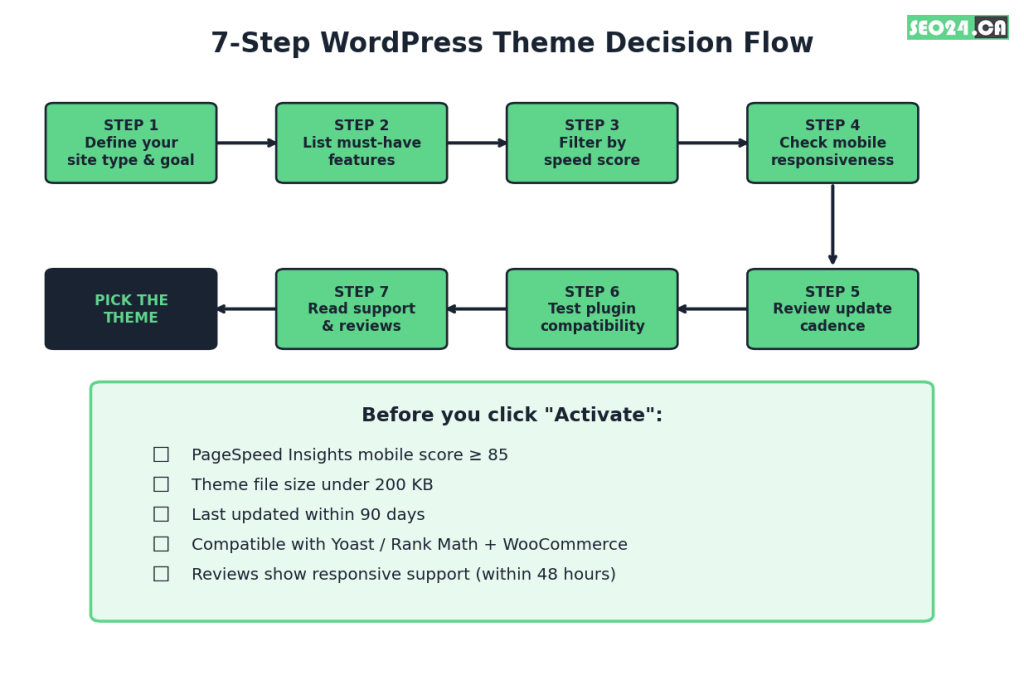
The 7-step framework
- Define your site type and primary goal. Blog, portfolio, eCommerce, SaaS landing page, local service, membership site, news magazine: each one needs different layout primitives. A theme built for restaurants will fight you when you try to make it a SaaS site.
- List your must-have features. WooCommerce support, multilingual (WPML/Polylang), custom post types, block-theme (FSE) support, dark mode, mega menu, RTL layout. Write the list before you open any theme directory.
- Filter candidates by speed score. Run each demo through PageSpeed Insights. Discard anything below 85 mobile or with an LCP above 2.5 seconds on the demo URL.
- Check mobile responsiveness manually. Resize the browser and inspect the mobile menu, image scaling, and tap-target spacing. If text overlaps or buttons cluster on a 375px viewport, the theme is not mobile-first.
- Review the update cadence. Open the theme’s changelog. Anything updated less than every 90 days, or whose last update is more than 12 months old, gets cut. Stale themes break with new WordPress core releases.
- Test plugin compatibility. Spin up a staging install, activate the theme, then activate Yoast SEO or Rank Math, WooCommerce, and your page builder. Open the console. Any JavaScript error here is a future SEO bug.
- Read support reviews. Sort marketplace reviews by “most recent.” Look for response times under 48 hours and resolved issues. A premium theme without working support is worse than a free theme with an active forum.
| Pro Tip Run the 7-step filter against a maximum of 10 candidate themes. Going wider doubles the time and rarely changes the final pick. By step 4 the shortlist usually collapses to 2 or 3 strong options anyway. |
You might be thinking: “I just want one that looks good.” Here is the trap. The themes that look most polished in demos (sliders, parallax sections, animated counters, video backgrounds) are almost always the heaviest. A Mississauga family-law practice we worked with swapped a flashy multipurpose theme for a stripped-down framework and gained 38% organic traffic in 11 weeks, with zero content changes. Nothing else on the site moved. The theme was the whole story.
Speed and Core Web Vitals: The Hidden Cost of Heavy Themes
Heavy WordPress themes ship 300 to 700 KB of CSS and JavaScript before your content loads. That payload is the single biggest predictor of poor Core Web Vitals. Google’s three measured metrics (Largest Contentful Paint, Interaction to Next Paint, Cumulative Layout Shift) all degrade as theme size grows.
Largest Contentful Paint must come in under 2.5 seconds to count as “Good.” On the average mobile connection in North America, every extra 100 KB of blocking CSS adds roughly 0.3 to 0.5 seconds to LCP. That math says a 600 KB theme starts at roughly a 2-second handicap before your hero image even downloads. And the hero image matters here: lazy loading the wrong image makes LCP worse, not better, which we cover in how to lazy load images in WordPress.
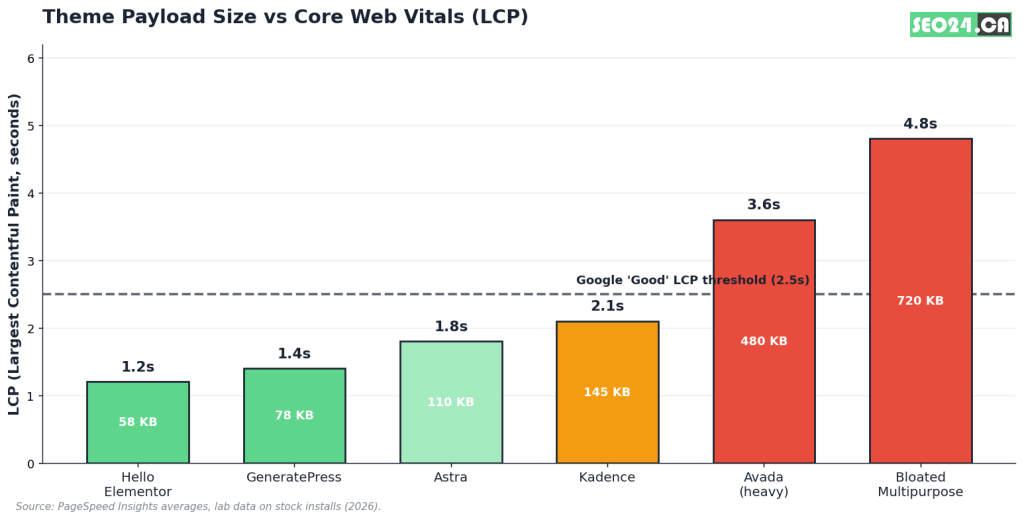
The three Core Web Vitals a theme controls
| Metric | What it measures | Google “Good” target | Where themes break it | |
| LCP | Largest Contentful Paint | < 2.5s | Heavy CSS, render-blocking JS, custom fonts | |
| INP | Interaction to Next Paint | < 200ms | Bloated JS bundles, slow event handlers | |
| CLS | Cumulative Layout Shift | < 0.1 | Late-loading fonts, images without dimensions, ad slots | |
Pro Tip INP replaced First Input Delay (FID) in March 2024 as Google’s official responsiveness metric. Themes that pass FID often fail INP because INP measures all interactions, not just the first. Re-test any theme whose last speed audit predates the switch to INP.
“A 600 KB theme starts at a 2-second handicap before your hero image even downloads.”
Page caching plugins like WP Rocket or W3 Total Cache cannot fix a heavy theme. Caching serves a faster copy of the same heavy HTML; it does not delete the bloat. The fix is upstream: pick a leaner theme to begin with, then use the page load time tools to trim whatever is left.
If your site is already on a heavy theme, a structured audit usually surfaces the worst offenders inside a week. We cover this kind of investigation as part of our WordPress web design work in Toronto.
Mobile-First Responsiveness Is Not Optional
Google’s index is mobile-first. The mobile version of your page is the version that gets crawled, scored, and ranked. A theme that looks great on a 1440px monitor but stacks badly on a 375px phone is, in Google’s view, a broken site. The desktop view stopped being the primary ranking surface in March 2021, and the gap has only widened since.
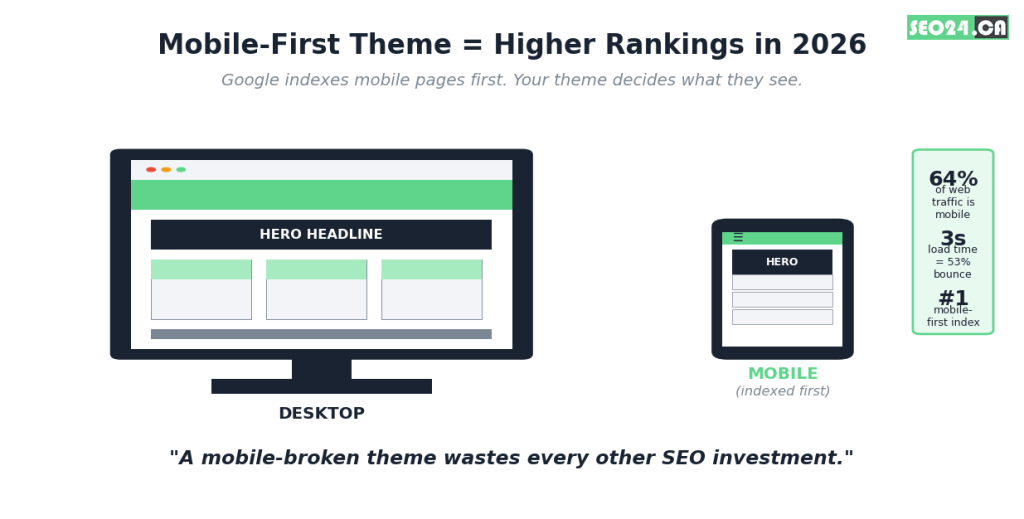
What “mobile-first” actually requires from a theme
- Single-column layouts that stack semantically (header, hero, content, CTA, footer).
- Tap targets at least 48×48 pixels, with at least 8 pixels of clearance between adjacent buttons.
- Readable type without zoom: minimum 16px body, 1.5 line height.
- No horizontal scrolling at any common phone width: 360px, 375px, 390px, 414px.
- Identical content on mobile and desktop. Never collapse paragraphs behind “tap to read more”; Google treats hidden copy as missing.
| Pro Tip Open Chrome DevTools, toggle the device toolbar, and test your candidate theme at 375px. If you have to pinch-zoom to read a button label, the theme fails mobile-first, no matter how the demo looks on your laptop. |
A common objection: “My desktop traffic is bigger than my mobile traffic, so isn’t desktop more important?” No. Google’s crawler is mobile. Your desktop visitors get their ranking from how your mobile site performs in the index. A Hamilton dental clinic we worked with had 70% desktop conversions and still gained 22% organic traffic when we fixed their mobile layout. The mobile signals decided where they ranked, regardless of where the conversions happened.
Free vs Premium WordPress Themes: Which One Actually Wins
Neither category wins on price. The deciding factors are code quality, update frequency, and how well the theme stays out of your SEO plugin’s way. A lean free theme like GeneratePress or Astra (free tier) often beats a $300 multipurpose premium theme on Core Web Vitals. A well-built premium theme like Kadence Pro beats a stale free theme on support and feature depth. Match the choice to the project, not the price tag.
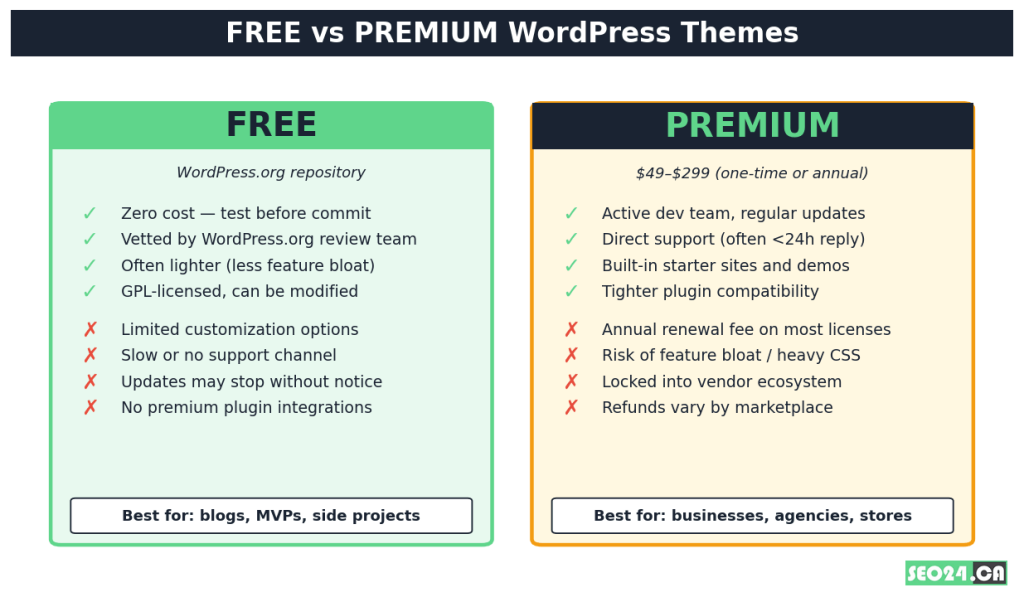
Head-to-head comparison
| Factor | Free theme (WP.org) | Premium (ThemeForest etc.) | Freemium (Astra/Kadence/GP) | |
| Cost | $0 | $49 to $299/year typical | $0 to $59/year (freemium) | |
| Updates | Variable, depends on author | Active during license period | Active for both tiers | |
| Support | Community forums only | Direct ticket support | Forum free / ticket premium | |
| Customization depth | Basic | Deep (theme options + builders) | Deep (paywalled features) | |
| Page-weight risk | Low (often lean) | Higher (feature bloat) | Low at free tier | |
| Best for | Blogs, side projects, MVPs | Businesses, agencies, stores | Most use cases (sweet spot) | |
Pro Tip The freemium model (a free core with a paid Pro add-on) is the sweet spot for most small businesses. Astra Free, GeneratePress Free, and Kadence Free all sit among the fastest themes on real-world Core Web Vitals data and let you upgrade only when you actually need a paid feature. If you are still weighing the platform itself, start with is WordPress good for small business.
Premium themes can still be the right call. If you sell anything online, the 24/7 support and tested WooCommerce integration save you days of debugging. The hidden cost of a free theme is the time you spend chasing bugs in community forums. For an eCommerce site doing 2,000 transactions a month, that time alone justifies a premium license.
What to Check Before You Hit “Activate”
Activating a new theme on a live site is a one-way door if you skip the prep. Themes can rewrite menu structures, drop sidebar widgets, lose page builder content, and reset homepage settings. A 12-minute pre-install checklist saves hours of recovery.
The pre-install checklist
- Take a full database and files backup using UpdraftPlus, BackupBuddy, or your host’s snapshot tool.
- Note your current theme name and version, in case you need to roll back.
- Screenshot your homepage, menu, and a sample inner page so you have a visual reference.
- Document custom CSS in the Customizer; copy it to a separate text file.
- Export your menus from Appearance > Menus > Manage Locations.
- Install and activate the theme first on a staging environment, not live.
- Check that your SEO plugin’s settings (schema, breadcrumbs, OpenGraph) survive the switch.
- Run PageSpeed Insights before and after, and compare LCP, INP, and CLS.
| Pro Tip Use the WP Staging plugin (free) to clone your live site to a subdomain in under five minutes. Test the new theme there. If anything breaks, your live site never sees it. |
The Mistakes Most Webmasters Make When Choosing a Theme
Across roughly 400 WordPress site audits, the same five theme mistakes keep showing up. Each one is avoidable, but only if you know to look for it.
Mistake 1: Picking a theme based on the demo
Theme demos run on the developer’s optimized server with the developer’s curated content. Your hosting, your images, and your plugin stack will all be slower. A demo that scores 95 in Lighthouse will routinely drop to 60 on a real install. Test on a staging copy of your actual site, not the demo.
Mistake 2: Trusting “responsive” as a feature claim
Every theme on the market claims to be responsive. On its own the label is meaningless: it only means the CSS uses media queries. It does not mean the layout is usable at 375px or that tap targets are spaced correctly. Test the theme yourself at common phone widths before believing the claim.
Mistake 3: Choosing multipurpose for a single-purpose site
Multipurpose themes ship with 30+ demos and the code to support every one of them, even when you only need one. That extra code loads on every page. If your site is a chiropractor in North York, you do not need the code for a wedding photographer demo loaded on every visit. Use a niche-specific or framework theme instead.
Mistake 4: Ignoring the update cadence
A theme that has not been updated in 12 months is a security risk waiting to happen. WordPress core ships major updates twice a year; each one can break older themes. Check the changelog before installing, and re-check it quarterly after.
Mistake 5: Building everything inside the theme instead of around it
If your hero section, contact form, and pricing table are all built with your theme’s shortcodes, you are locked in. The day you outgrow the theme, you lose all of that content. Build core elements with portable tools (Gutenberg blocks, Elementor templates, or reusable blocks) that survive a theme switch.
“Build core elements with portable tools that survive a theme switch.”
How to Test a WordPress Theme Before Committing
Theme testing is a four-stage process: speed, mobile, plugins, content. Run it on a staging install with your real content, not the theme’s demo data. The whole sequence takes about 45 minutes and catches 90% of compatibility issues before they reach your live site.
The four-stage testing protocol
- Speed test (5 min): Run PageSpeed Insights on your homepage, one inner page, and one heavy page (blog with images). Record LCP, INP, CLS on mobile and desktop. Compare against your old theme.
- Mobile test (10 min): Use Chrome DevTools at 360px, 375px, 390px, 414px. Check menu, hero, image scaling, forms, and CTAs. Test landscape orientation.
- Plugin test (20 min): Activate your full plugin stack one at a time. After each activation, load the homepage and check the browser console for JavaScript errors. Pay special attention to the SEO plugin, page builder, and any eCommerce plugin.
- Content test (10 min): Browse 5 representative pages: homepage, blog index, single post, contact page, and one custom page (product, service, portfolio item). Confirm typography, spacing, and images all render as expected.
| Pro Tip If you cannot run a staging site, at minimum activate the theme during your lowest-traffic hour (usually 3 to 5 AM local time), test for 15 minutes, and roll back if any test fails. A short controlled test window beats a multi-day broken site. |
Once your theme passes the four-stage test, the next step is making sure the rest of your SEO stack (content, links, technical structure) actually uses it. We cover that progression in our guide to how SEO helps your business grow.
Conclusion
Choosing a WordPress theme is a structural decision, not a design decision. The theme you pick becomes the chassis your content, plugins, and SEO investment ride on for the next three to five years. Get the chassis right (fast, mobile-first, well-maintained, plugin-friendly) and everything else compounds. Get it wrong and every other improvement runs into a ceiling you put there on day one.
Filter against the four hard criteria (under 200 KB, mobile-first, updated within 90 days, clean plugin compatibility) and run the 7-step framework on every candidate. Test on staging before you go live. The result is a theme that disappears from the user’s mind and lets your content rank on its own merits. That is the only kind of theme worth keeping.
Frequently Asked Questions
How do I choose a WordPress theme for my site?
Start by defining your site type and primary goal, then list your must-have features. Filter candidate themes by mobile PageSpeed score (above 85), payload size (under 200 KB), update cadence (within 90 days), and plugin compatibility with your SEO plugin and page builder. Run the top 2 or 3 finalists through a staging install with your real content before activating on the live site.
Do WordPress themes impact SEO?
Yes. WordPress themes directly impact SEO through four channels: Core Web Vitals scores (LCP, INP, CLS), mobile-first index eligibility, crawl efficiency from clean HTML, and schema markup quality. A heavy or poorly coded theme can drop a site from page one to page four after a Google Core Update. A lean, well-structured theme removes that ceiling.
What’s the difference between a free and premium WordPress theme?
The main differences are support, update guarantees, and feature depth, not necessarily code quality or SEO friendliness. Premium themes typically include direct ticket support, regular updates during the license period, and built-in starter sites. Free themes rely on community forums and update at the developer’s discretion. For most small businesses, a freemium theme (free core, optional Pro add-on) like Astra, GeneratePress, or Kadence is the sweet spot.
How often should I change my WordPress theme?
Only when your current theme stops meeting your needs. Switching themes is disruptive: it can break custom CSS, lose widget configurations, and temporarily hurt rankings until Google re-crawls. As a rule, keep a working theme for at least 2 years, and only switch when speed, security, or feature gaps justify the disruption.
Can a slow WordPress theme really hurt my Google rankings?
Yes. Page experience signals, driven mainly by the theme, are a confirmed ranking factor. Sites with LCP above 4 seconds on mobile routinely lose positions in competitive niches. The effect is most pronounced in commercial searches where Google has many fast alternatives to choose from. A slow theme also raises bounce rate and shortens session duration, which act as indirect ranking signals.
Is WordPress still a good choice for a business website?
Yes. WordPress still powers a very large share of all websites (W3Techs measures it at roughly two in five sites), it has the biggest ecosystem of themes, plugins and developers, and it gives you full control over SEO. What has changed is that a slow or bloated theme is now a bigger liability, so the theme choice matters more than the platform choice.
How do I switch WordPress themes without losing SEO?
Test the new theme on a staging copy first. Before going live, check that titles, meta descriptions and schema still come from your SEO plugin rather than the old theme, that headings are still structured correctly, that no theme-specific shortcodes break page content, and that Core Web Vitals are equal or better. After launch, crawl the site and watch Search Console for a few weeks.
Your Next Step
If you’ve read this far, you have the framework. The question is whether you have the time to run it. Most business owners we work with would rather skip the 45 minutes of staging tests and the back-and-forth with PageSpeed Insights; they want a theme that works, installed correctly, with the speed and SEO foundation already configured.
If that sounds like you, our team handles WordPress theme selection, migration, and Core Web Vitals optimization as part of our WordPress web design service in Toronto. Send us your current site URL and we’ll send back a free 15-minute audit of where your current theme is costing you traffic, with three concrete fixes you can apply this week.
Prefer to start with a conversation? Get in touch with SEO24; we reply within one business day.