
To optimize your Google Business Profile listing, get five things right before you touch anything else: choose the most specific primary category available, complete every field on the profile, keep reviews coming in and answer all of them, upload photos regularly, and keep your hours accurate. In every local ranking factor study, those five carry most of the weight. The rest of this guide compounds them.
We manage Business Profiles for clients across Toronto and the GTA at SEO24, and the pattern repeats: the profiles that win the map pack are rarely the ones doing something clever. They are the ones doing the boring fundamentals more consistently than the business next door. Here is the full checklist, in the order we actually work through it.
What Is Google Business Profile?
Google Business Profile (GBP) is the free listing that controls how your business appears on Google Search and Google Maps. It used to be called Google My Business, and plenty of people still search for “GMB”, but the product was renamed and the old dashboard is gone. You now manage your profile directly inside Google Search or the Maps app: search your business name while signed in to the owner account and the editing panel appears right in the results.
Your profile holds your address, phone number, website, hours, photos, reviews, services and posts. For a local business, it is usually the single highest-leverage asset in local search, ahead of the website itself. If you want the background on why, our guide on what GBP optimization is and why you need it covers that side. This page is the how.
What Actually Moves Your Local Ranking
Not every field on your profile carries the same weight, and this is where most guides mislead people. Your primary category is the strongest signal you directly control. Review recency and review responses come next, followed by overall profile completeness and accurate hours. Proximity to the searcher matters enormously too, but you cannot change where your business sits, so spend your effort on what you can control.
Things like Google Posts, Q&A and photo volume sit further down the list. They still matter, mostly for conversion rather than ranking, and a profile that looks alive earns more clicks and calls at the same position. Treat the twelve steps below as a priority order, not just a sequence.
How to Optimize Your Google Business Profile, Step by Step
1- Claim and Verify Your Business
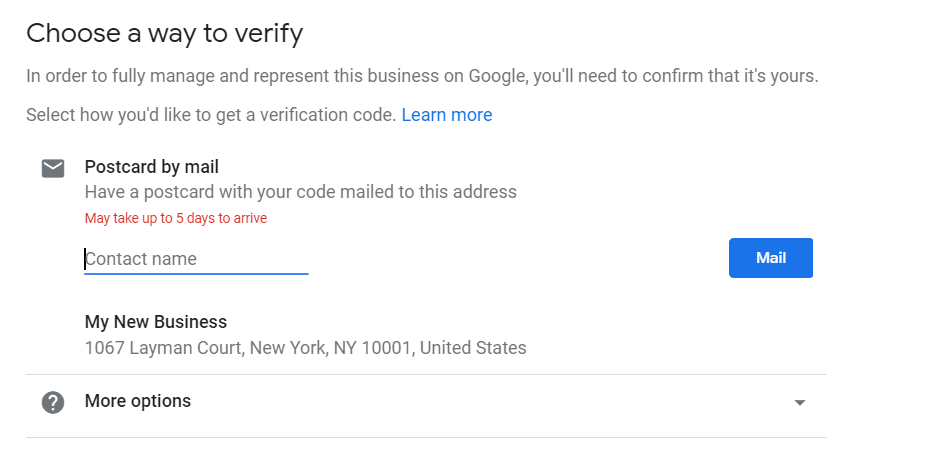
Nothing else on this list works until you own the profile. Search your business name on Google while signed in, or go to the Google Business Profile page and search for your business by name and address. If a listing already exists, claim it; if not, add it. Google then verifies you by video, phone, email or postcard depending on your business type and location. Video verification has become the default for many Canadian businesses, so have your storefront, signage and equipment ready to film.
2- Complete Your Profile Information
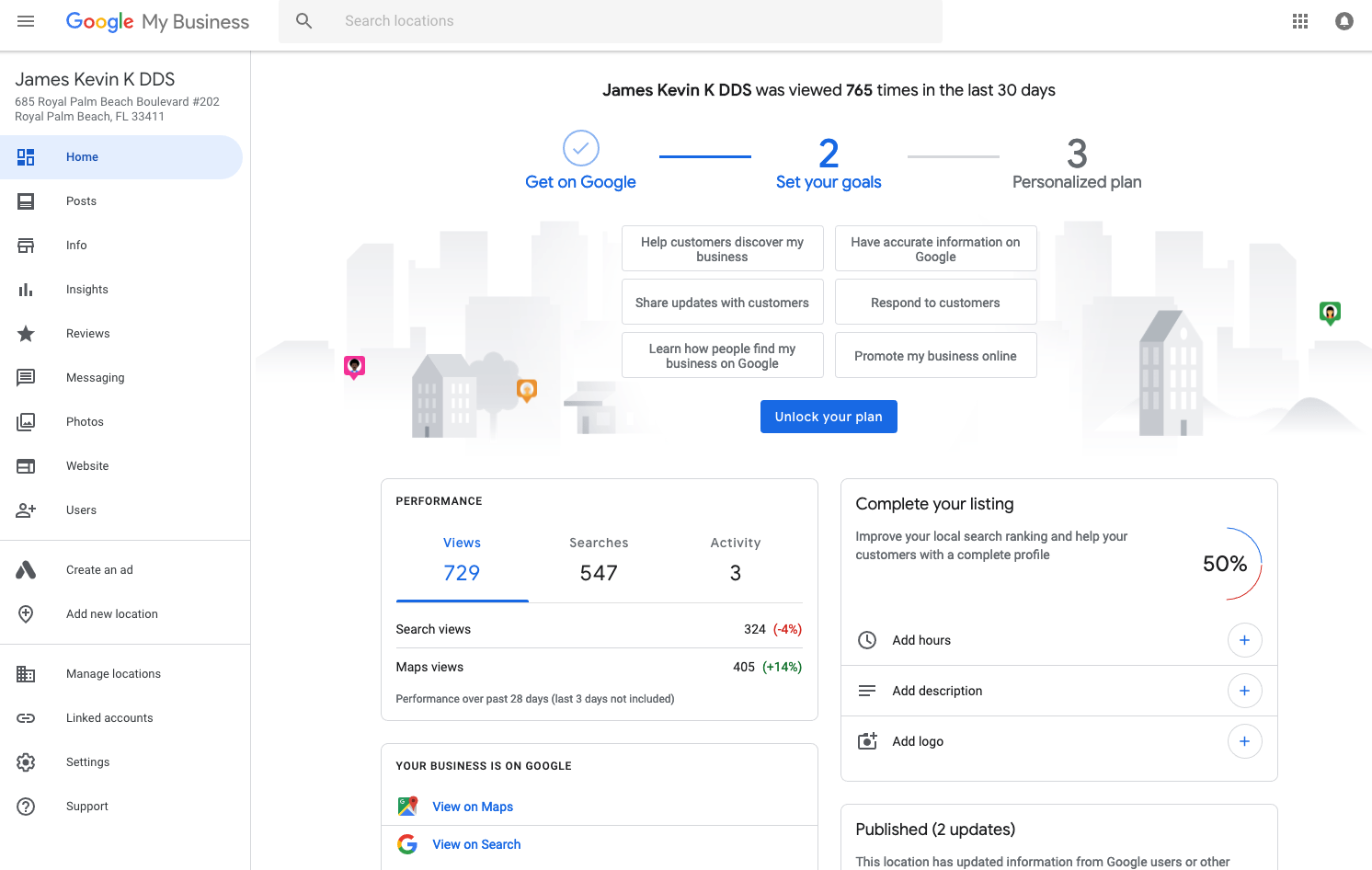
Fill in everything: name, address, phone, website, hours, opening date, attributes and the business description. Google itself confirms that complete profiles get more calls and direction requests, and completeness feeds the ranking side too. Two rules matter more than the rest here. First, your name, address and phone number must match what appears on your website and your other listings, letter for letter. Inconsistent NAP data quietly erodes trust with Google. Second, write the 750-character description for a customer, not a keyword stuffer: what you do, who you serve, what makes you different. Keyword-stuffed descriptions read badly and do nothing for ranking.
3- Choose the Right Business Category
This is the single most important field on the profile. Your primary category tells Google which searches you belong in, and specific beats broad every time: “Emergency dental service” outranks “Dentist” for emergency searches, “Persian restaurant” beats “Restaurant” for cuisine searches. Pick the most precise primary category that describes your core business, then add secondary categories for your other services. One warning from experience: changing your primary category can shake up your rankings for a few weeks, so make the change deliberately, not experimentally.
4- Add High-Quality Photos
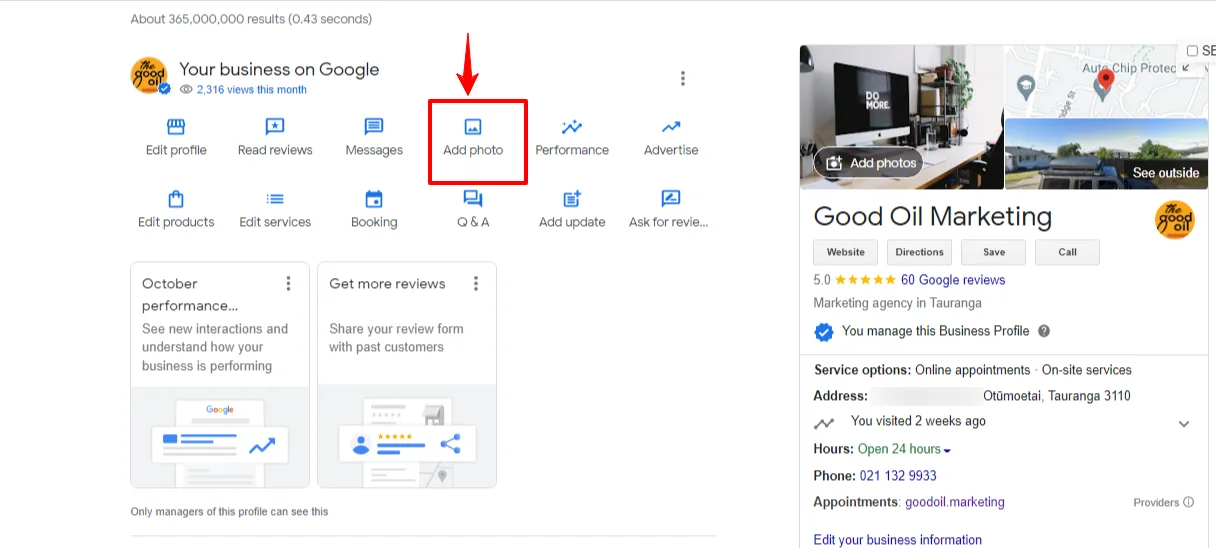
Profiles with real, recent photos convert better, full stop. Upload genuine shots of your storefront, interior, team and work, and keep adding a few every month rather than dumping thirty once and forgetting about it. Recency is a signal of an active business. Skip stock photos entirely; customers can tell, and so can Google’s image systems. If you serve customers at their location rather than yours, photos of completed jobs do the same work a storefront shot does for a shop.
5- Encourage and Respond to Reviews
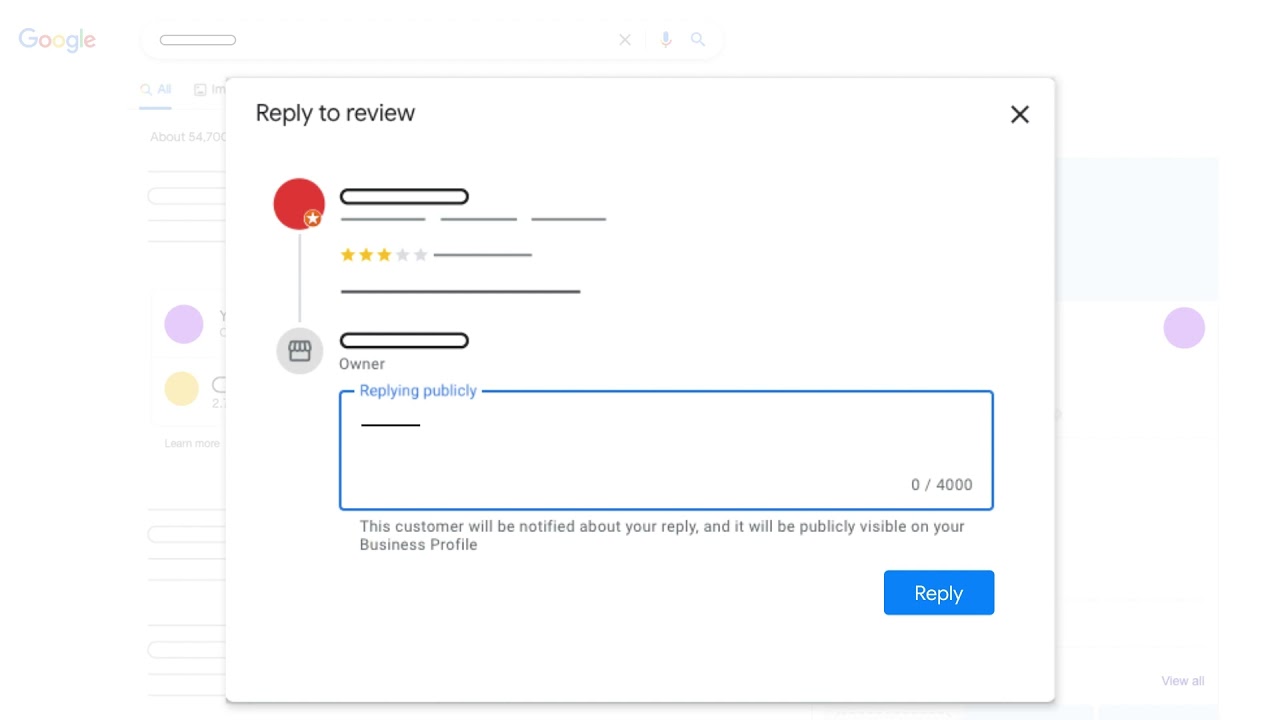
Reviews are the second-strongest lever you control. A steady trickle of new reviews beats a big burst followed by silence, because Google weighs recency, and so do the humans reading them. Share your direct review link with happy customers right after the job is done, when the goodwill is highest. Then respond to every review, positive and negative. Response rate is a visible trust signal, and a calm, professional reply to a bad review often does more for you than the five-star ones. We wrote a full guide on how to respond to Google reviews effectively, including templates for the hard ones, and a companion guide on how to increase Google reviews with 14 tactics for growing the volume side.
6- Post Regular Updates
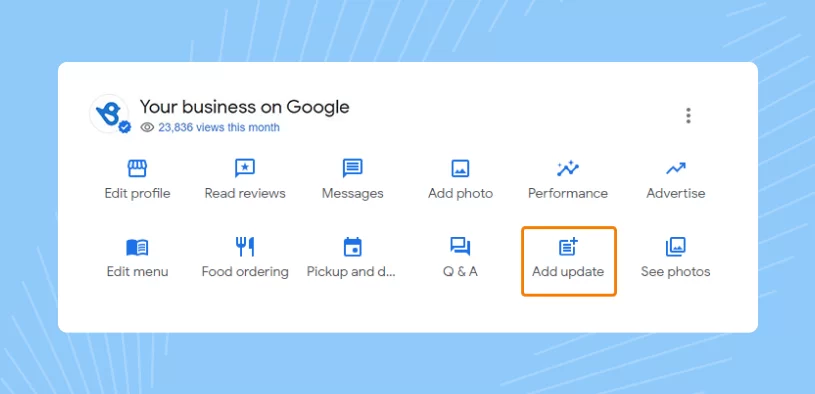
Google Posts are short updates that appear on your profile: offers, events, news, new services. Their direct ranking effect is small, but they keep the profile visibly alive and give searchers a reason to pick you over the listing next to yours. One post a week is plenty. Write it like a message to a customer, add a photo, and include a clear call to action. An offer post with an end date consistently outperforms a generic update.
7- Add Your Contact Options and Social Profiles
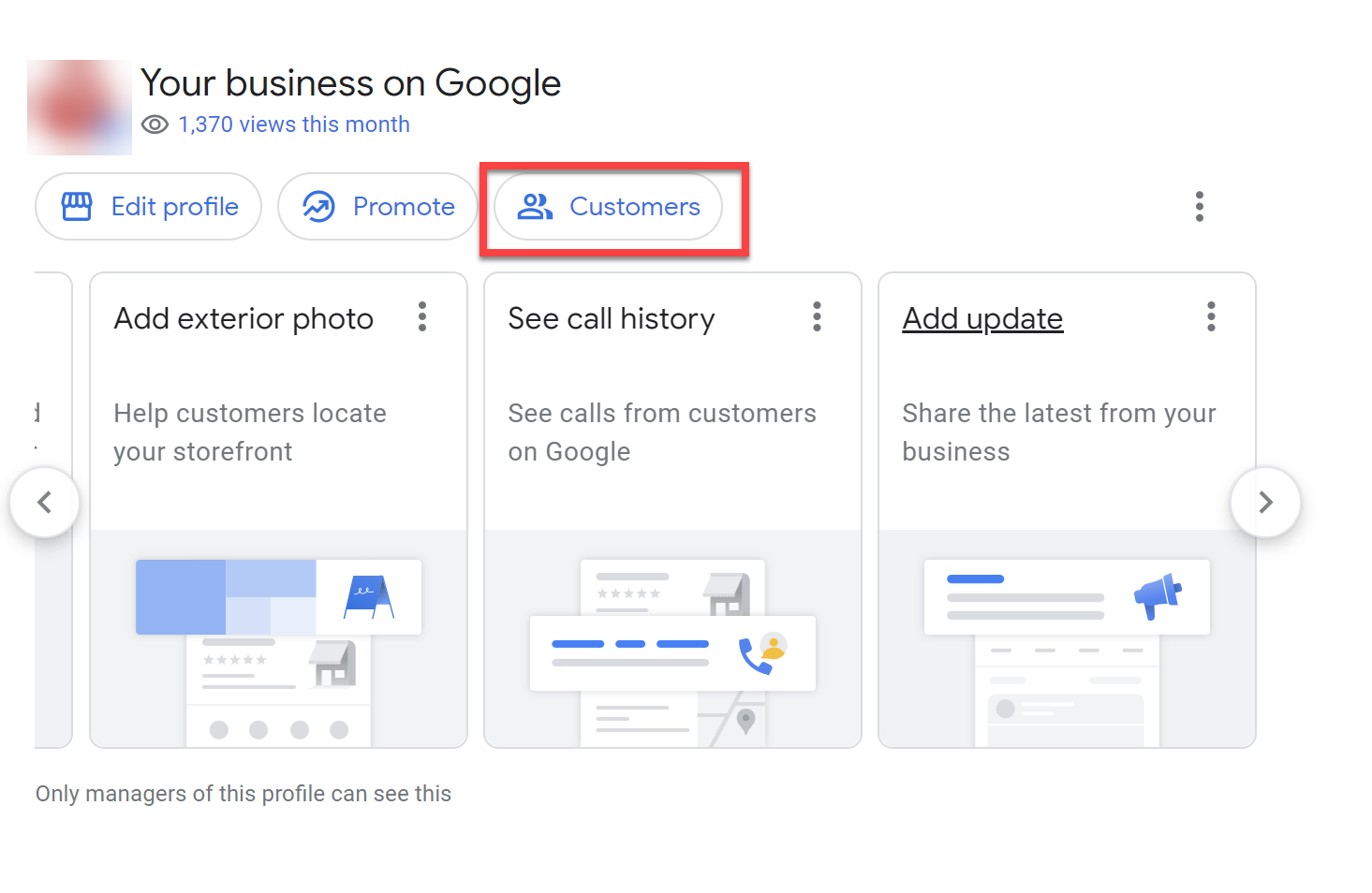
Google retired the built-in chat and call history features from Business Profile in July 2024, so if an older guide tells you to turn on messaging, that button no longer exists. What you can do instead: make sure your phone number and website are correct and prominent, link your social profiles (Facebook, Instagram, LinkedIn, YouTube and others can now be added to the profile), and where available in your region, add a WhatsApp contact option. Every extra working contact path is one less reason for a customer to click the next result.
8- Add Products and Services
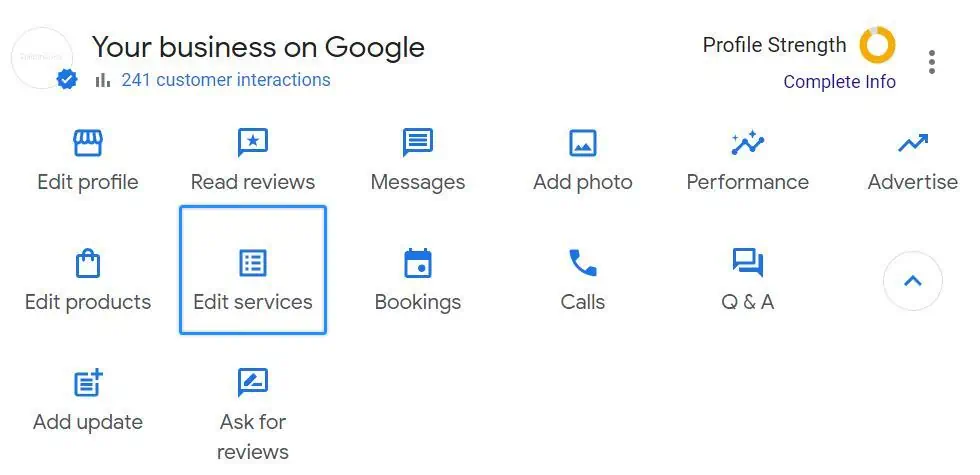
The Services and Products sections tell Google, in its own structured format, exactly what you sell. Use Google’s predefined service options where they exist, because those map cleanly to search queries, then add custom services with short plain-language descriptions for anything Google’s list misses. For product businesses, real photos and prices in the Products section turn your profile into a mini storefront. This section quietly helps you appear for “service near me” searches you would otherwise miss.
9- Seed and Monitor the Q&A Section
Anyone can ask a question on your profile, and here is the part most owners miss: anyone can answer, including people who have no idea. Get ahead of it. Post the questions customers actually ask (parking, pricing, booking, insurance, timelines) from your owner account and answer them yourself. Then check the section monthly for new questions, because an unanswered question or a wrong answer from a stranger sits there in public until you deal with it.
10- Enable Booking (If Applicable)
If your business runs on appointments, connect a supported booking provider through the profile or add your booking link directly. A customer who can book in two taps from the map pack rarely bothers visiting three competitor websites first. Test the flow yourself on a phone once it is live; a broken booking link is worse than none.
11- Check Your Performance Reports
The old “Insights” tab is now called Performance, and it answers the questions that matter: which searches surfaced your profile, how many people called, requested directions or clicked through to the site, and how that changes month over month. The search terms report is the underrated gem. It shows the actual words customers use, which often differ from the words on your website, and those terms belong in your service descriptions and site copy.
12- Keep Everything Up to Date
An optimized profile is maintained, not finished. Update holiday hours before every long weekend, because nothing earns a one-star review faster than a customer standing outside a closed door that Google said was open. Review your categories, services and description quarterly. Refresh photos monthly. This maintenance rhythm is most of what separates profiles that hold rankings from profiles that fade. It also pairs naturally with the rest of your local presence: citations, location pages and local content, which we cover in our guide on how to promote your business locally in Toronto.
Want this done for you, and kept up every month? Our Google Business Profile optimization service handles the full checklist for Toronto and GTA businesses, or you can pair it with a broader local SEO campaign. Contact us for a free profile review.
FAQ: Optimizing Your Google Business Profile
How long does it take for Google Business Profile optimization to work?
Profile edits like categories, services and description usually take effect within days. Ranking movement is slower: expect visible change over four to twelve weeks as reviews accumulate and Google re-evaluates the profile. Competitive Toronto markets sit at the longer end of that range.
Do Google Posts improve local rankings?
Not much, directly. Their value is conversion: an active profile with fresh posts earns more clicks, calls and direction requests at the same ranking position. Treat posts as free advertising space on your own listing rather than a ranking lever.
Can I still use messaging or chat on my Business Profile?
No. Google removed the built-in chat and call history features from Business Profile in July 2024. Customers now contact you through your phone number, website, booking link or the social profiles you have linked, so make sure those are all accurate.
Why is my competitor ranking above me in the map pack?
Usually one of four reasons: they are physically closer to the searcher, their primary category matches the query more precisely, they have more recent reviews, or their profile is simply more complete. Proximity you cannot fix. The other three you can, and this checklist covers all of them.
The Short Version
Claim the profile, pick the most specific primary category, complete every field, and then run the maintenance loop: new reviews answered, fresh photos monthly, accurate hours always. That loop, done consistently, beats almost anything fancier. If you would rather hand it off, talk to us at SEO24 and we will show you exactly where your profile stands today.